
Cutting Blue Iris False Alerts with AI (Real Settings from My Cameras)
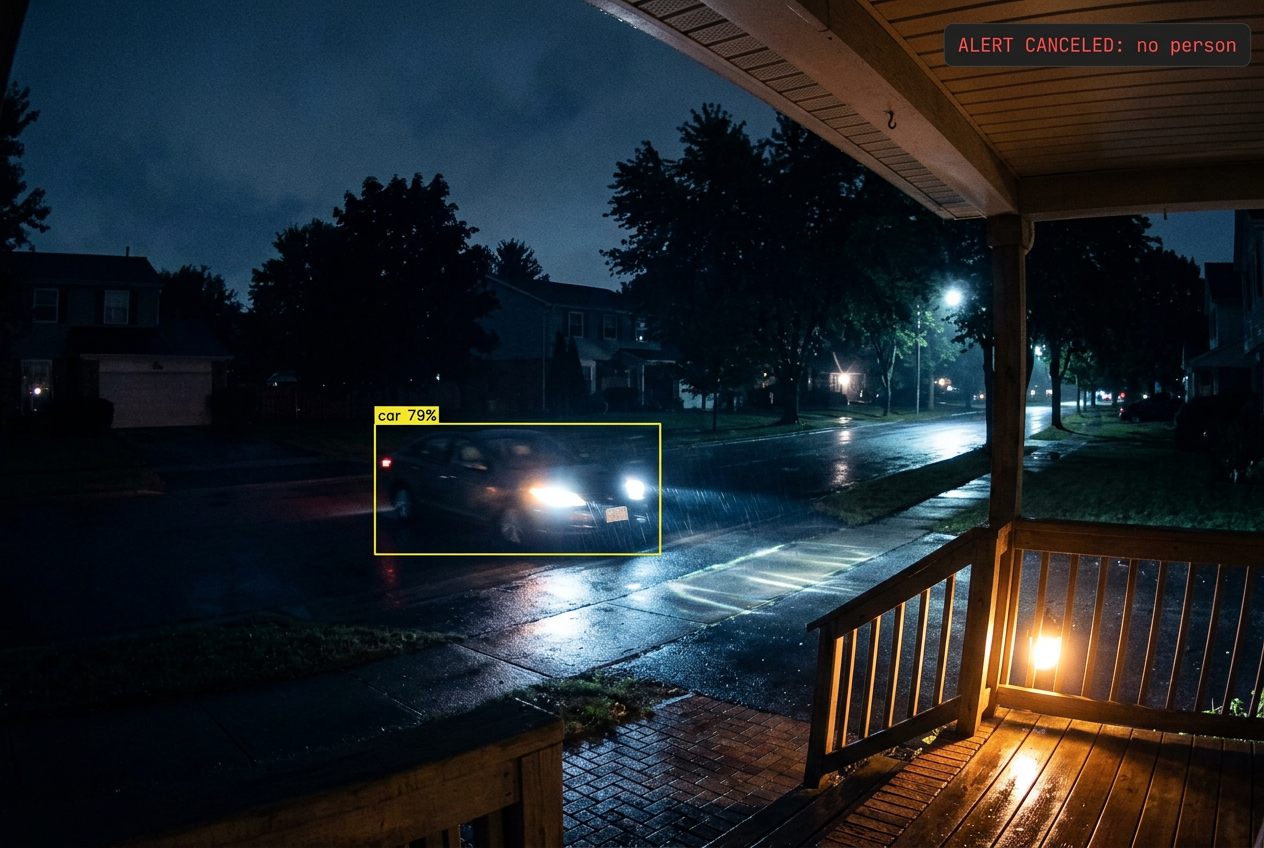
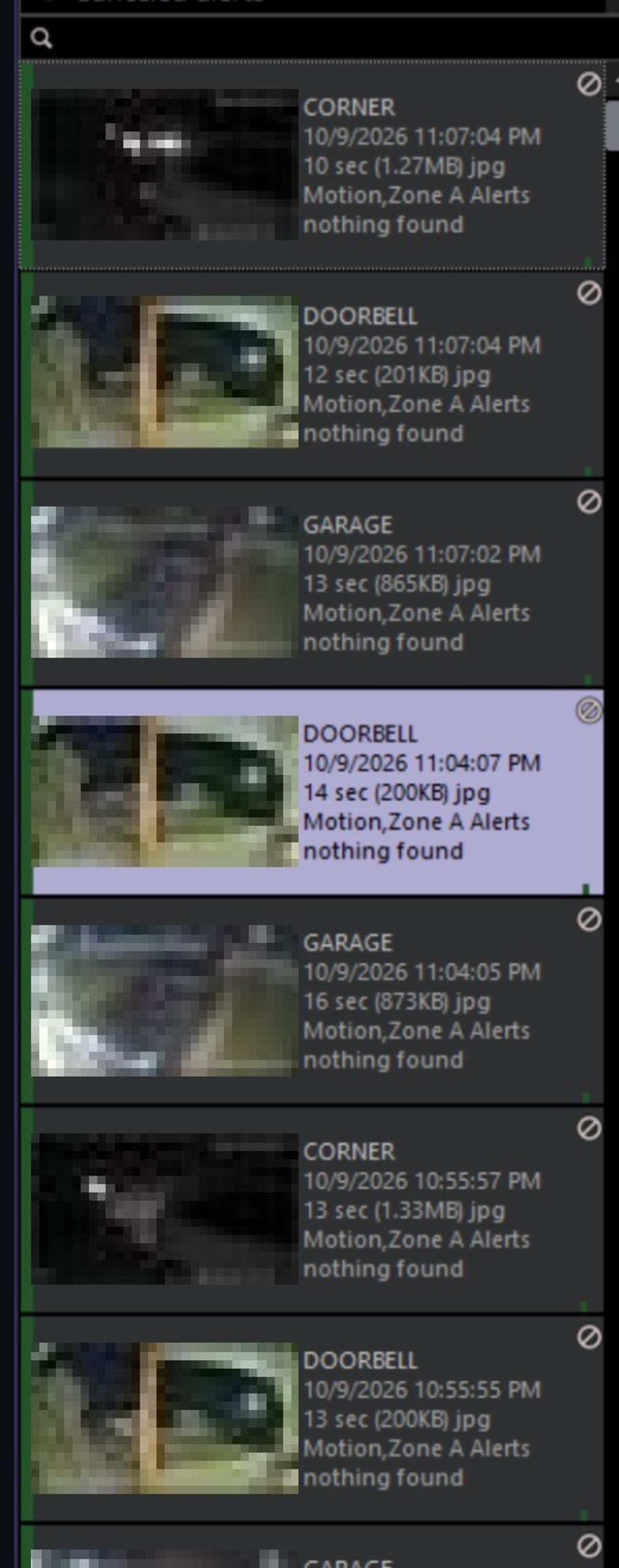
Motion detection on its own is a terrible alert system. One night recently, between 10:55 and 11:07 PM,, three of my cameras fired together, over and over. The corner, doorbell, and garage cameras all triggered within two seconds of each other, three separate times. Something was moving down the street, almost certainly a car, and Blue Iris saw it everywhere.
None of those alerts went anywhere. Every one of them landed in my canceled alerts list with the same two words: nothing found.
That's Blue Iris AI confirmation doing its job. Motion trips the trigger, the AI looks at a handful of frames, and if it doesn't see what I told it to look for, the alert is thrown out before it reaches my phone. Below is exactly how I have it set up, with real alerts from my own cameras.
How AI Confirmation Works
Motion detection is cheap, fast, and dumb. It sees pixels change. Headlights, shadows, rain, bugs on the IR lens, and a flag blowing in the wind all count. AI confirmation adds a second step:
- Motion trips the trigger.
- Blue Iris grabs a few frames from just before the trigger (pre-trigger images) and more after it (post-trigger images), spaced out by the "analyze one image each" interval.
- Each frame goes through the AI model. If an object on your "To confirm" list shows up at or above the minimum confidence, the alert is confirmed.
- If nothing qualifies, the alert is canceled. Mine get moved to a canceled alerts list so I can review them later.
The upshot: you can keep motion detection fairly sensitive and let the AI do the filtering. Missing a real event is worse than a few extra AI runs.
My Global AI Setup (No GPU)
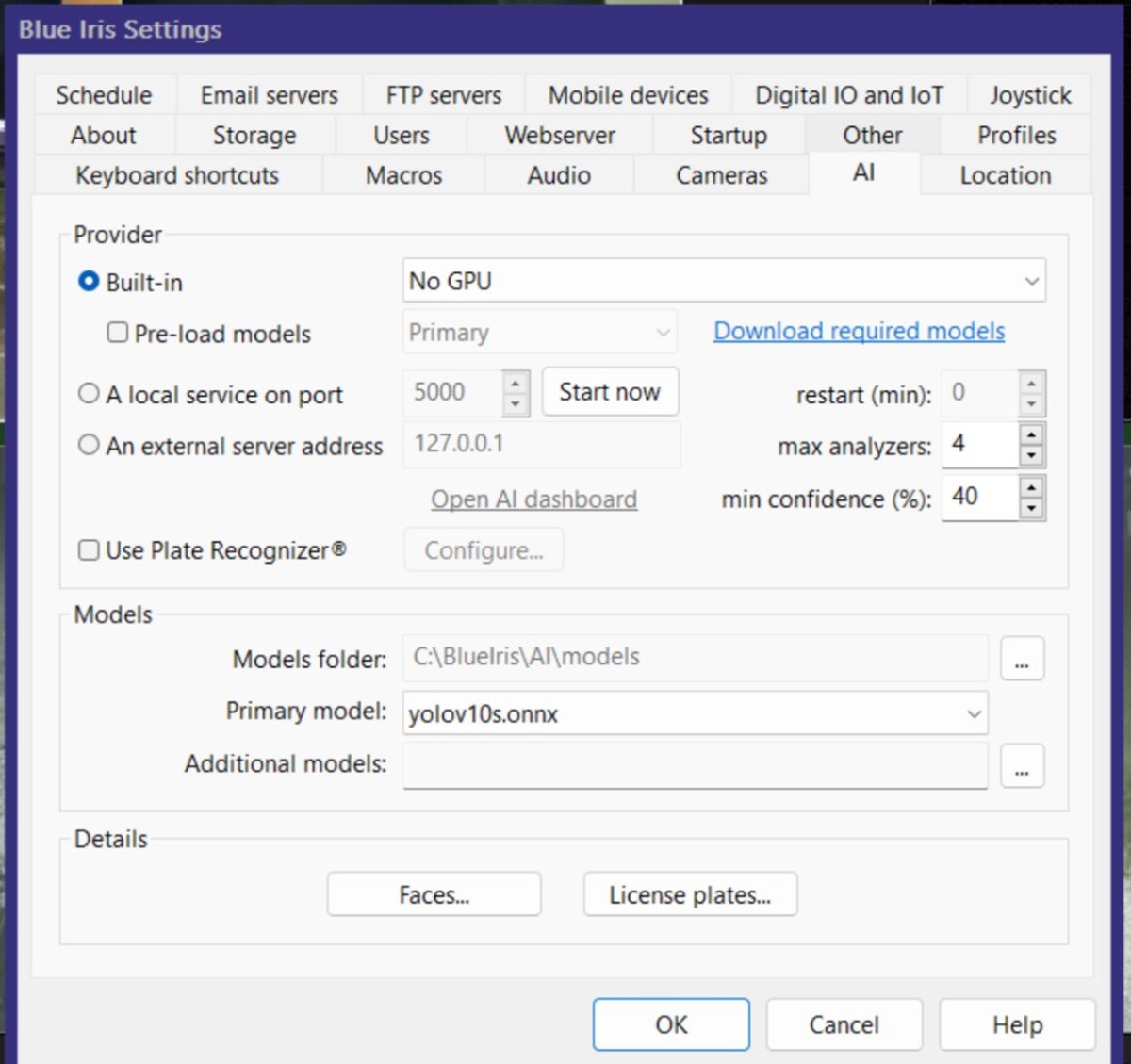
I run the built-in AI provider with No GPU and yolov10s.onnx as the primary model. I covered why I picked that model in Reading License Plates with Blue Iris 6. The short version: it's a good balance of speed and accuracy when you're stuck on CPU.
Two other settings here matter:
- Max analyzers: 4. How many AI jobs can run at once. With several cameras triggering together (like the passing car above), you want more than one.
- Min confidence: 40%. Treat this as a global floor. Each camera sets its own, higher threshold.
Do you need a GPU? Not for this. My system has run 113,527 AI analyses at an average of 231 ms each, all on CPU. That's plenty for alert confirmation because you're only analyzing a handful of frames per event, not every frame from every camera.
A Real Canceled Alert, Frame by Frame
Here's one of those canceled doorbell alerts from that night, opened in the AI inspector (right-click an alert, then "Open alert AI inspector").
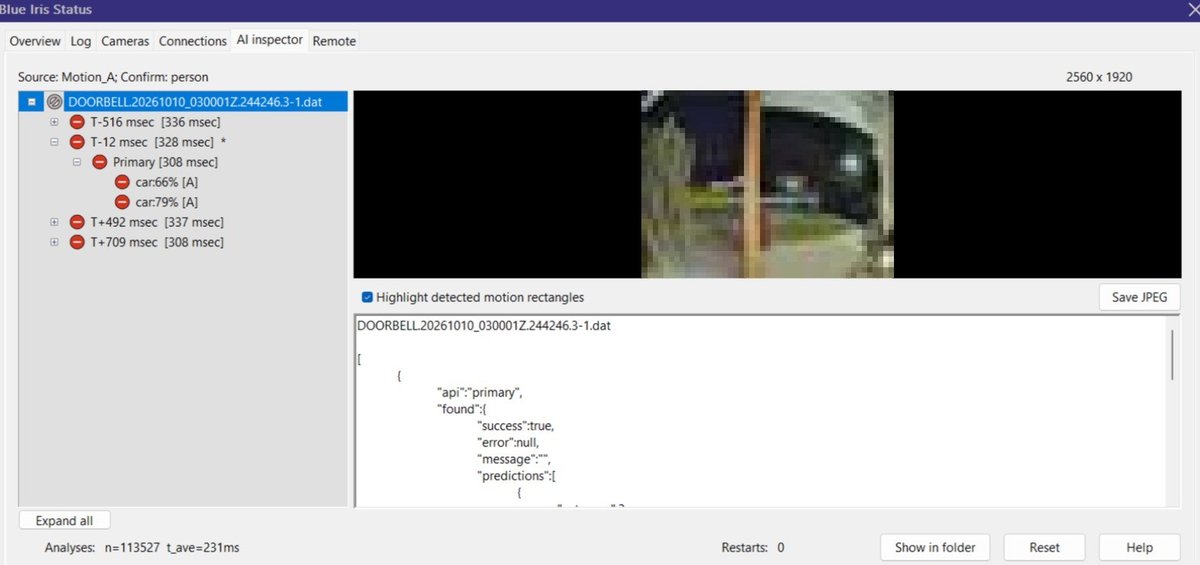
The header says it all: "Source: Motion_A; Confirm: person." Motion in zone A triggered it, and the only thing that confirms an alert on this camera is a person.
Blue Iris analyzed four frames: one 516 ms before the trigger, one right at it (T-12 ms), and two after (T+492 and T+709 ms). Each took 308 to 337 ms to analyze. The yellow box is the motion that tripped the trigger, out by the street on the left of the porch post.
Notice the AI did find something. In the T-12 frame it found two cars at 79% and 66% confidence: the vehicles parked in front of the house. It just didn't find a person, and a person is the only thing this camera cares about. So: canceled, no notification, correct call.
People Cameras: Doorbell and Garage
My doorbell and garage cameras exist to tell me when someone walks up to the house. Their AI setup is identical.
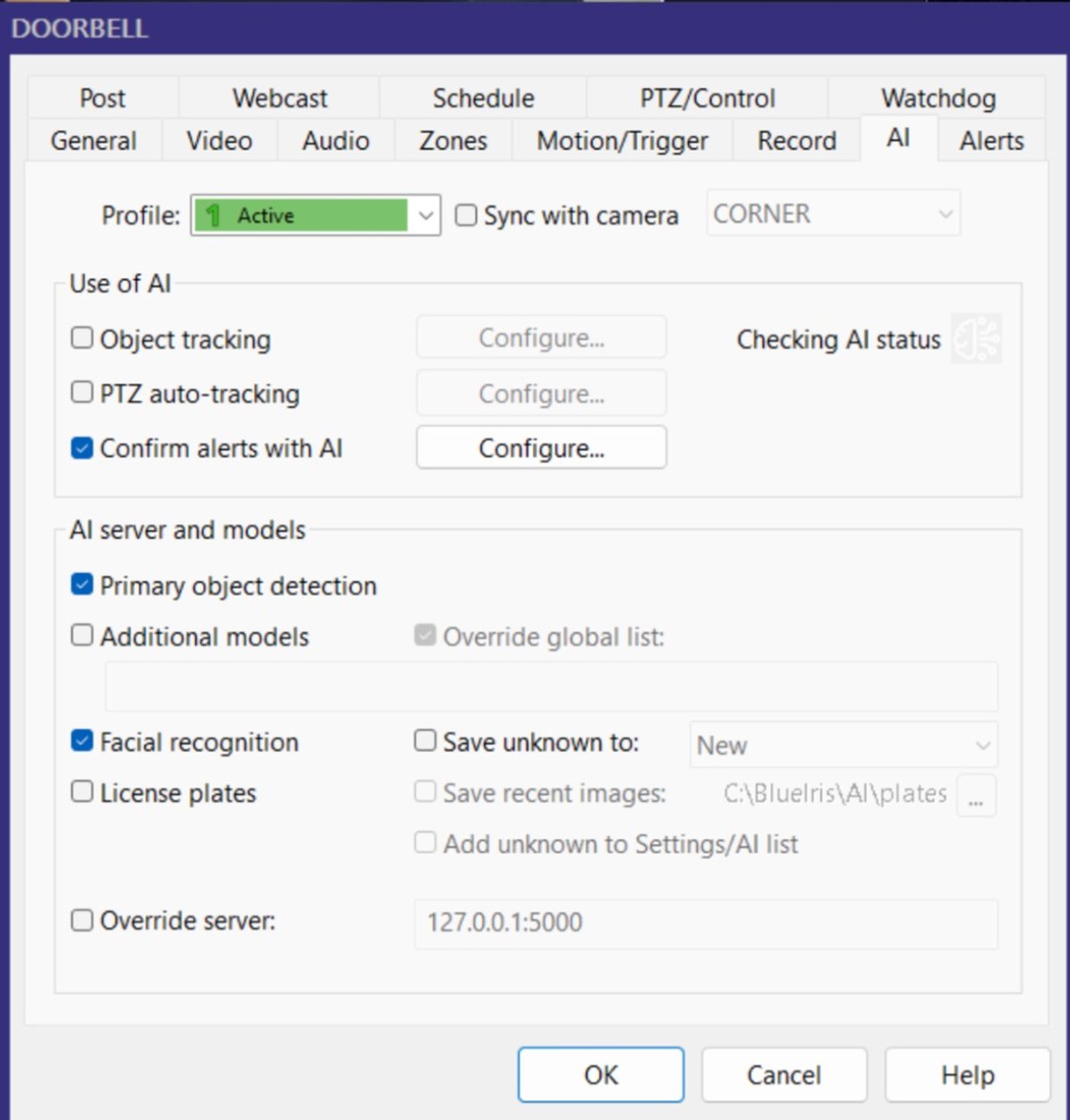
On the camera's AI tab, Confirm alerts with AI is the important checkbox. Without it, alerts fire on motion alone. Primary object detection runs the main model. I also have facial recognition checked on the doorbell, but I haven't loaded any known faces yet, so for now it isn't doing anything useful.
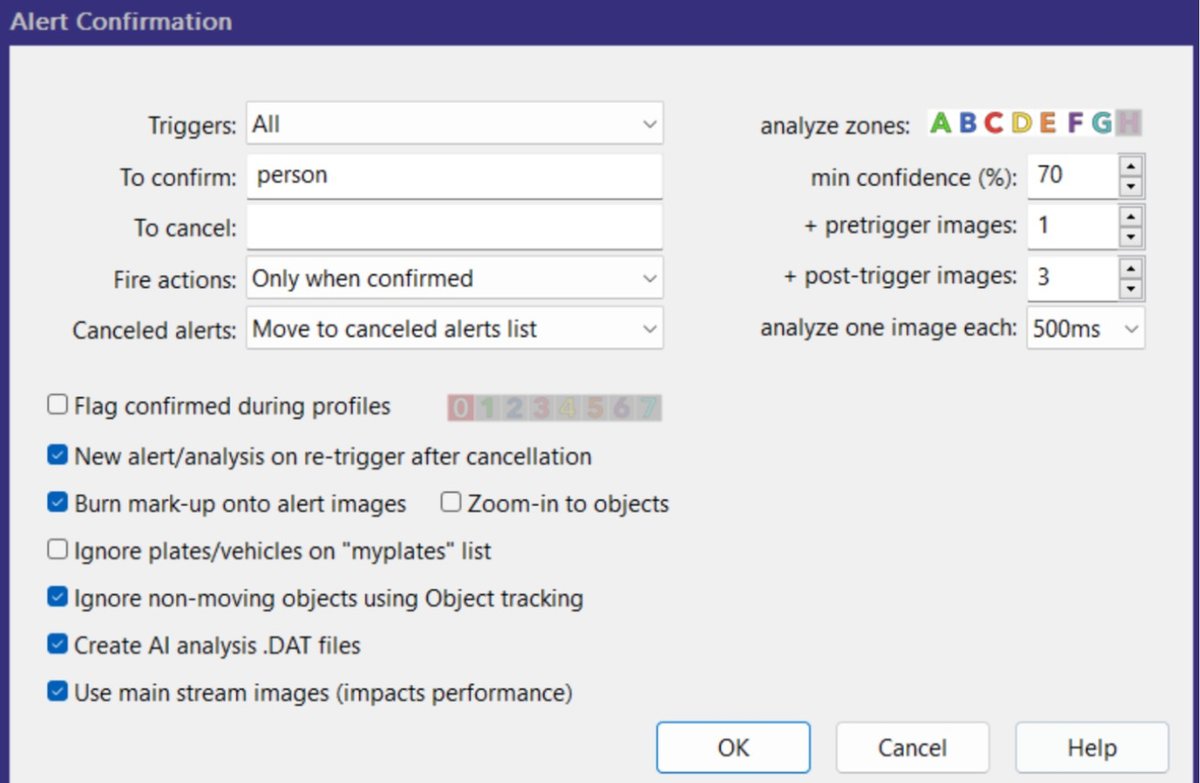
Click Configure next to "Confirm alerts with AI" to get the settings that actually matter:
- To confirm: person. Nothing else. I don't want alerts for cars, cats, or my own trash cans.
- Min confidence: 70%. High enough to skip the borderline guesses on shadows and shrubs, low enough to still catch someone at night in IR.
- 1 pre-trigger and 3 post-trigger images, one every 500 ms. That's 4 frames covering about two seconds. People are slow. Someone walking to the door is in frame for several seconds, so 4 well-spaced frames are plenty.
- Fire actions: Only when confirmed. This is what actually stops the notifications. Canceled alerts don't trigger anything downstream.
- Canceled alerts: Move to canceled alerts list. Don't delete them. You want to audit what the AI throws away, especially in the first few weeks.
- Ignore non-moving objects using Object tracking. Keeps parked cars and lawn ornaments from confirming alerts if you ever add more object types.
- Create AI analysis .DAT files. Required for the AI inspector. Turn this on.
- Use main stream images. The AI sees the full-resolution image instead of the low-res substream. It costs CPU, but on a 4.9 MP doorbell the difference in what the model can recognize is worth it.
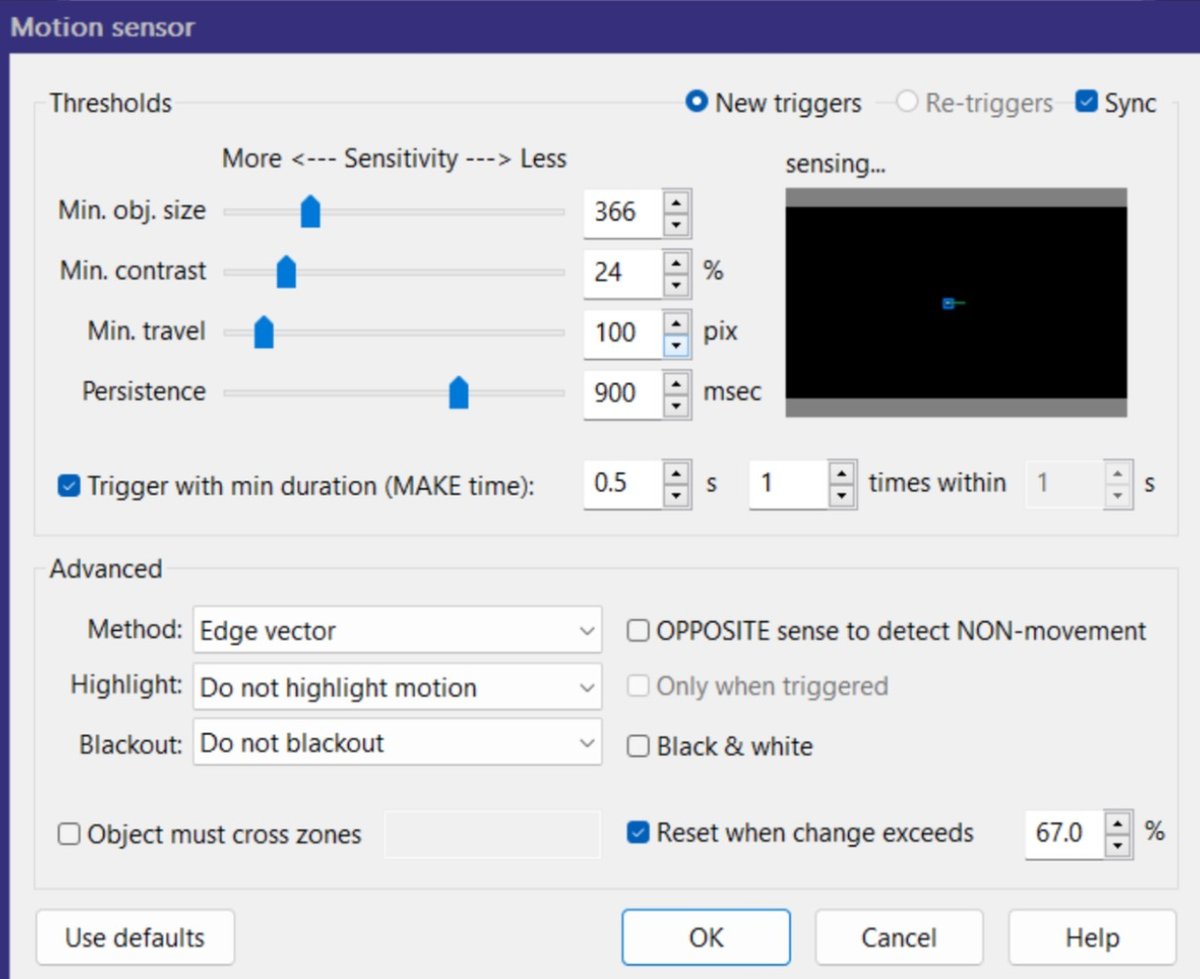
For motion, I keep things fairly sensitive and let the AI clean it up. A few settings worth calling out:
- Min. obj. size 366, min. contrast 24%. Moderate. Small enough to catch a person at the edge of the frame.
- MAKE time 0.5 s. Motion has to last half a second before it triggers. That alone kills a lot of single-frame flicker.
- Method: Edge vector. This looks for moving edges instead of raw brightness changes, so it's less fooled by lighting shifts.
- Reset when change exceeds 67%. When most of the frame changes at once (headlights washing over the porch, or the camera switching into IR), Blue Iris resets the motion detector instead of treating it as motion.
The garage camera is nearly identical, except it uses the Simple method and a 0.3 s MAKE time.
Fast Objects: The License Plate Camera
My corner camera is the license plate camera, and it needs a completely different strategy. A car crosses its field of view in about a second. Four frames spaced 500 ms apart could miss the plate entirely.
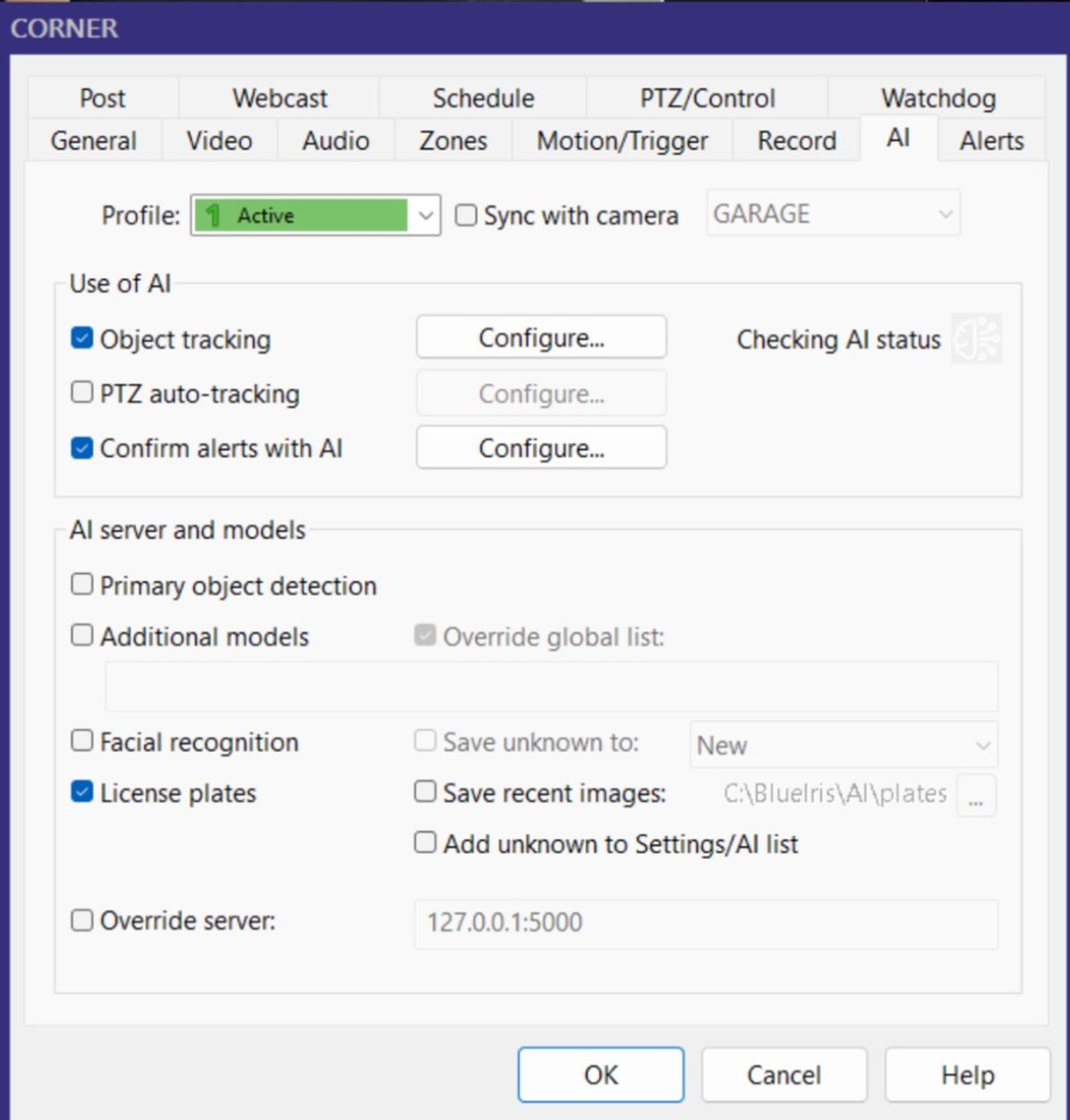
On this camera, Primary object detection is off and License plates is on. I don't need the camera to tell me it saw a car. I need it to find and read the plate. Object tracking is also on here.
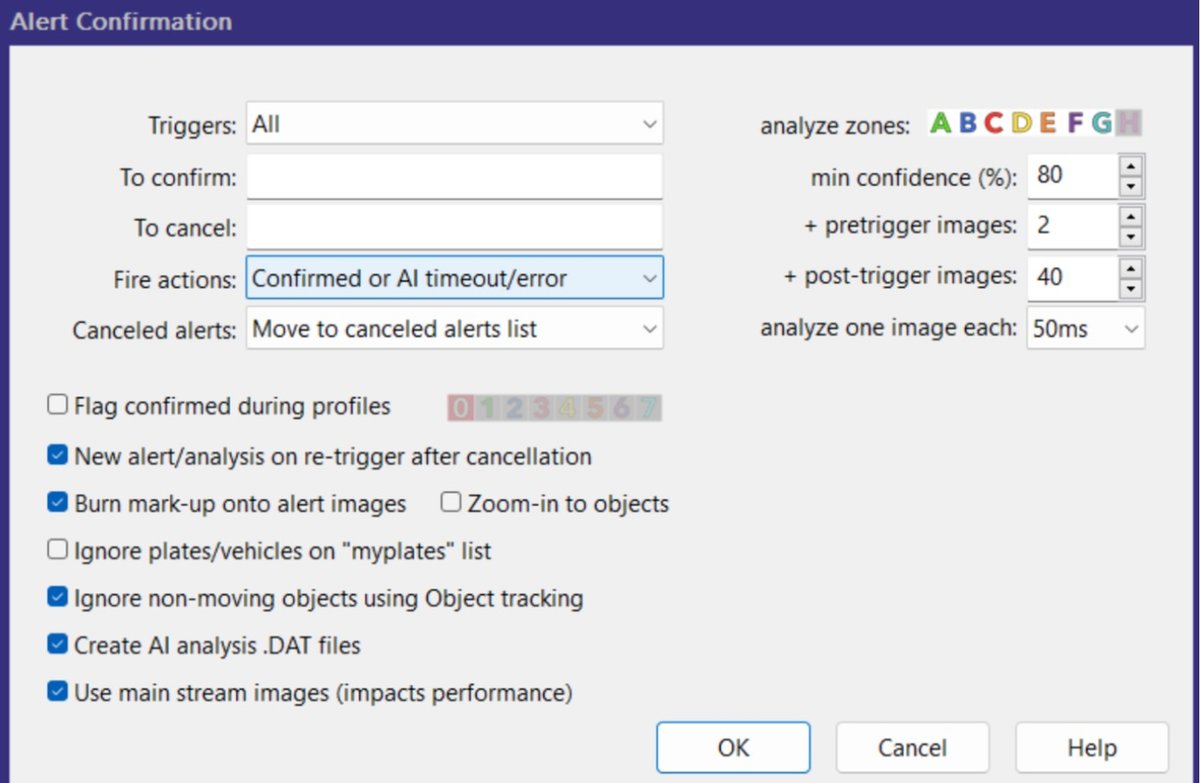
- To confirm is blank. With the general object model off, the plate model is the only thing running, so any plate detection confirms the alert.
- Min confidence: 80%. Higher than the people cameras. A low-confidence "plate" is usually a reflective sign or mailbox, and I'd rather not store junk reads.
- 2 pre-trigger and 40 post-trigger images, one every 50 ms. Same two-second window as the doorbell, but 42 chances to catch a readable plate instead of 4. This is the single biggest difference between the two setups.
- Fire actions: Confirmed or AI timeout/error. On the doorbell, a missed alert just means a package photo I don't get. On this camera, a missed alert is a plate I never recorded. If the AI falls behind or errors out, I'd rather get the alert anyway.
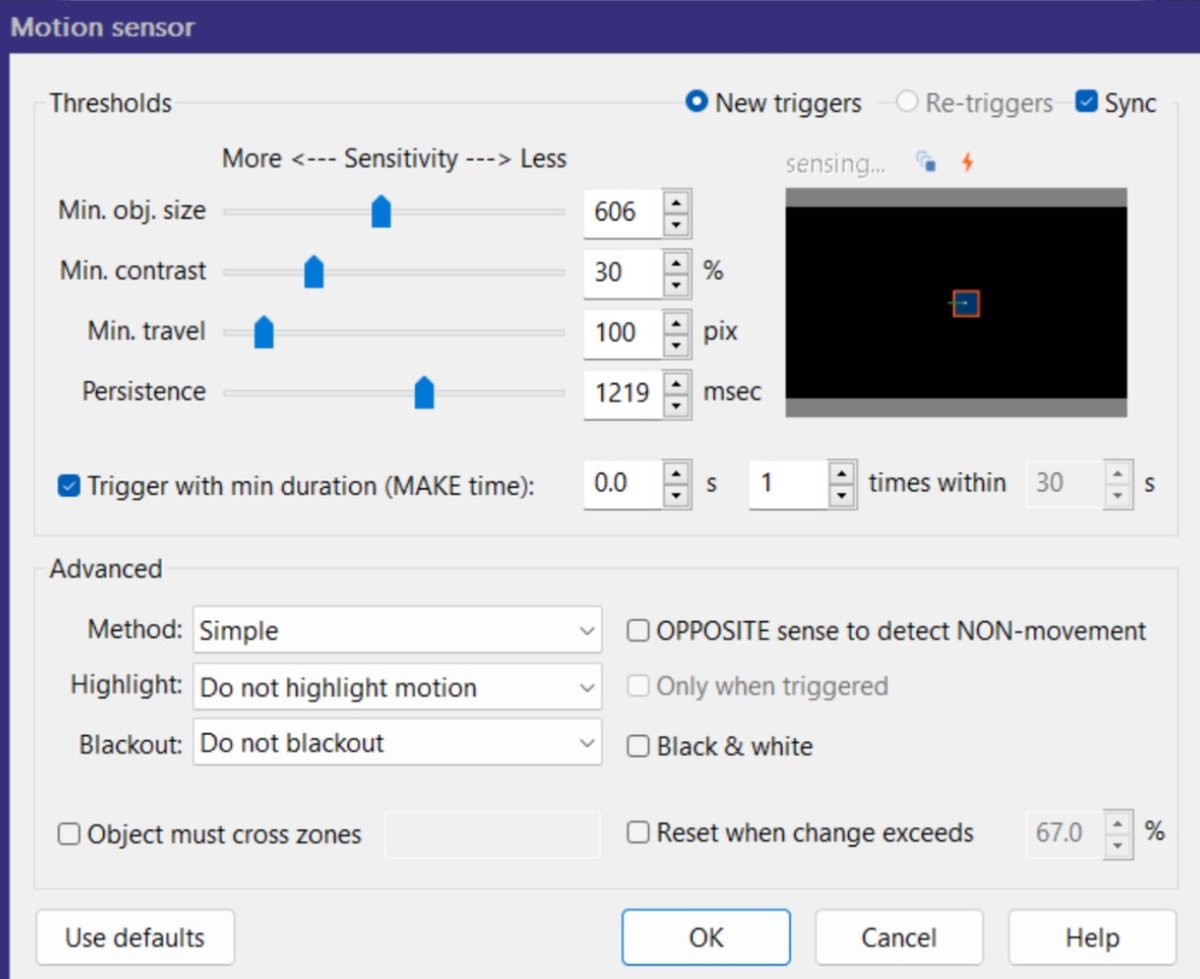
Motion is tuned for speed:
- MAKE time 0.0 s. Trigger immediately. Every millisecond of delay is part of the car that's already gone.
- Min. obj. size 606. Bigger than the doorbell's. This camera only cares about vehicles, so small stuff like bugs in the IR light shouldn't trigger it.
- Persistence 1219 ms, with a 60-second max trigger duration on the Motion/Trigger tab. Cars pass, they don't hang around.
The full license plate setup, including camera placement and the MQTT alert path, is in my Blue Iris license plate guide.
Tuning With the Canceled Alerts List
The canceled alerts list is the most useful tuning tool in Blue Iris, and most people never look at it. Here's what I check:
- Real people or cars in the canceled list? Your confidence threshold is too high, or the AI is looking at the wrong frames.
- Junk in the confirmed list? Raise the confidence, or shrink your "To confirm" list to just what you care about.
- Open the AI inspector on anything that looks wrong. If the object only shows up in the last frame, add more post-trigger images. If it was already in frame before the trigger, add pre-trigger images.
- Look for patterns. That burst of three cameras canceling within two seconds was a single car. If you see the same burst confirming instead, that's your sign a camera's confirm list is too broad.
Give it a few days of real traffic before changing anything. One weird night doesn't mean your settings are wrong.
Wrapping Up
AI confirmation turned Blue Iris from something that buzzed my phone every time a car drove by into something I actually trust. The core idea is simple: keep motion sensitive, decide exactly what each camera should care about, and give the AI enough frames to see it.
My confirmed plate alerts end up in Platelytics, where I can search and track them over time. If you want to compare setups or have questions, reach me at support@platelytics.app.
Want the next one?
New posts and product updates. No spam.